How to Install the IIMAC App
& Troubleshooting Guide
Welcome to the IIMAC Hub! For the best experience—including one-tap access to the Member Directory, Job Board, and Buddy Exchange—we highly recommend installing the IIMAC App directly to your phone’s home screen.
Because our platform updates dynamically based on your membership tier, you may occasionally need to refresh the app to see the latest content. Follow the guide below to get set up and resolve any loading issues.
📱 Part 1: How to Install the IIMAC App
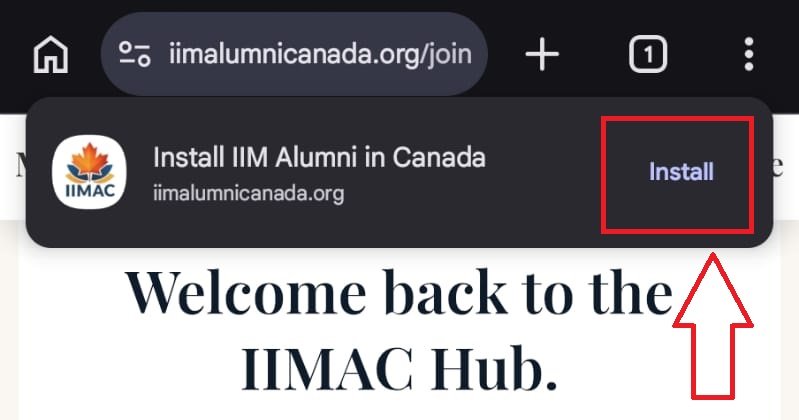
Look for the Auto-Prompt!
Because the IIMAC Hub is a modern Progressive Web App (PWA), your phone might recognize it automatically. When you open the website, look for a banner at the top or bottom of your screen that says "Install IIM Alumni in Canada." If you see it, simply tap the Install button and you are done! Don't see the banner? No problem! Click the next tab to install it manually in just a few seconds.
Start from your Mobile Browser
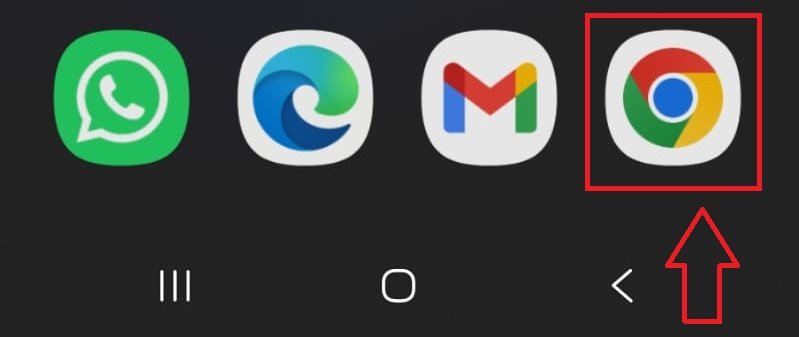
To manually install the app, open Google Chrome on your Android device (or Safari on iOS) and navigate to iimalumnicanada.org. Note: Because this is a Progressive Web App, it bypasses the traditional app stores. It installs directly and securely from your browser, taking up almost no storage space on your phone.
Access your Browser Menu
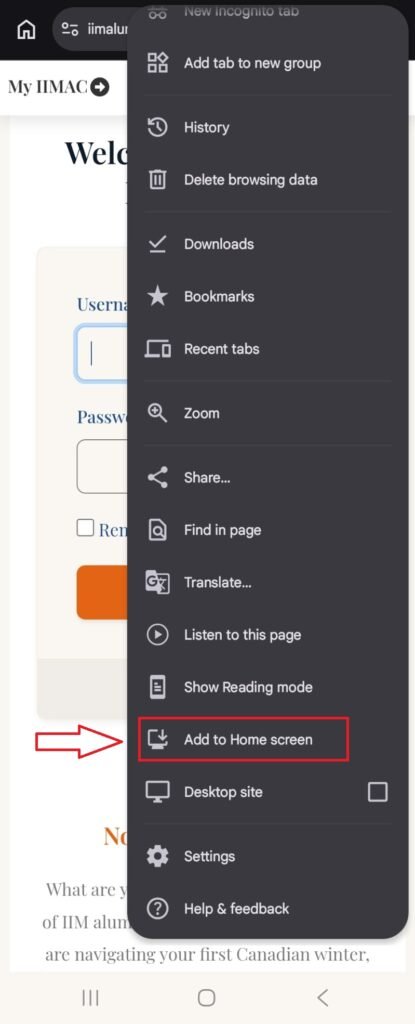
Once the IIMAC website has fully loaded: Tap the Three Dots (⋮) in the top right corner of your Chrome browser to open the menu. Scroll down the list of options and tap Add to Home screen.
Confirm the Installation (2 Steps)
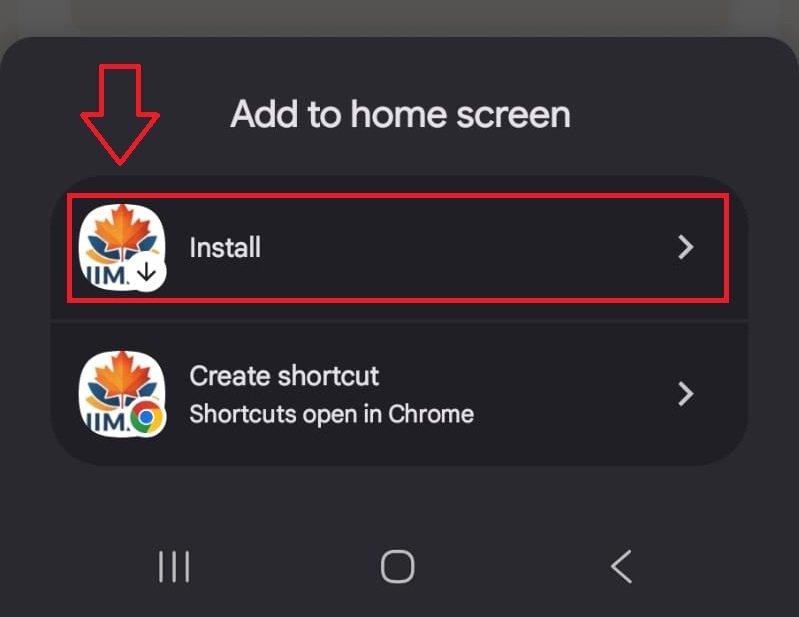
Depending on your phone, you will see a two-step confirmation process to ensure the app is installed correctly:
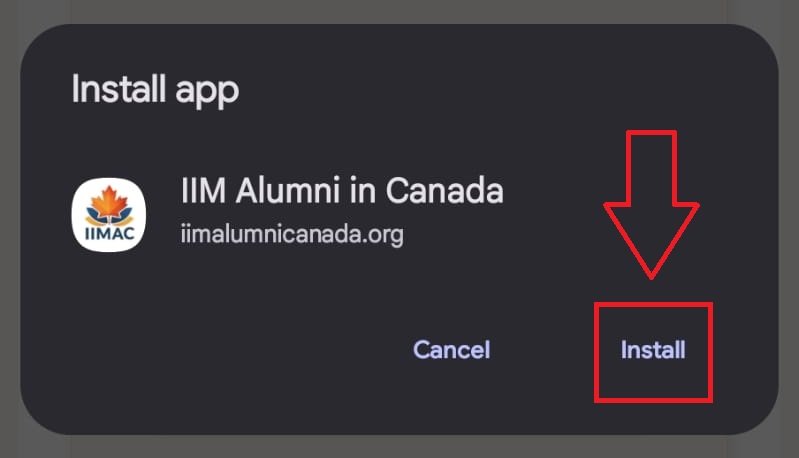
Step 1: A menu will pop up asking how you want to add the site. Make sure you tap "Install" (do not tap "Create shortcut").
Step 2: A final confirmation box will appear. Tap Install to confirm. The app will now securely download in the background!
Success! Launch the Hub.
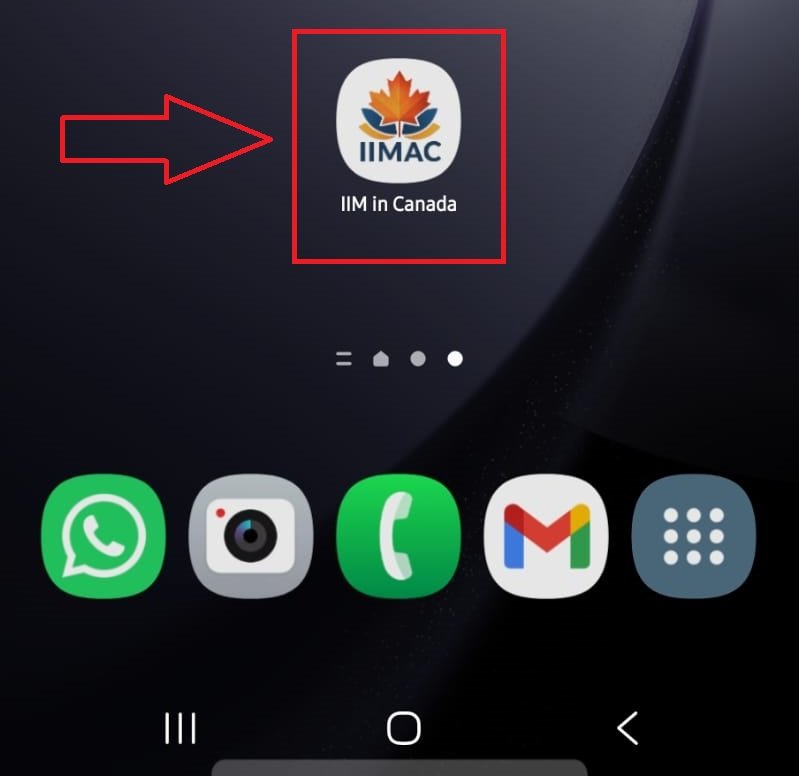
Navigate back to your phone's home screen or app drawer. You will now see the official IIMAC maple leaf icon sitting right alongside your other apps. Tap it to launch the dedicated, full-screen IIMAC experience! You now have instant, one-tap access to the Member Directory, Job Board, Buddy Exchange, and community events.
🛠️ Troubleshooting:
Seeing a "Restricted Access" Screen?
Facing issues with access on the IIMAC app or website ?
Here's how to solve it.
🤔 Why does this happen?
To make the IIMAC app load lightning-fast, your phone saves a temporary snapshot of the website to its memory (known as a “cache”).
The Glitch: Sometimes, after you log in or upgrade your membership, your phone gets stubborn. Instead of asking our server for the newest page, it just shows you the old, logged-out snapshot it saved yesterday.
The Fix: We just need to force your phone to throw away the old snapshot. By clearing the app’s cache and data, your phone is forced to fetch the fresh, fully-unlocked version directly from our live servers.
Check the tabs to do it in 15 seconds:
Step 1: Open App Info & Access App Settings
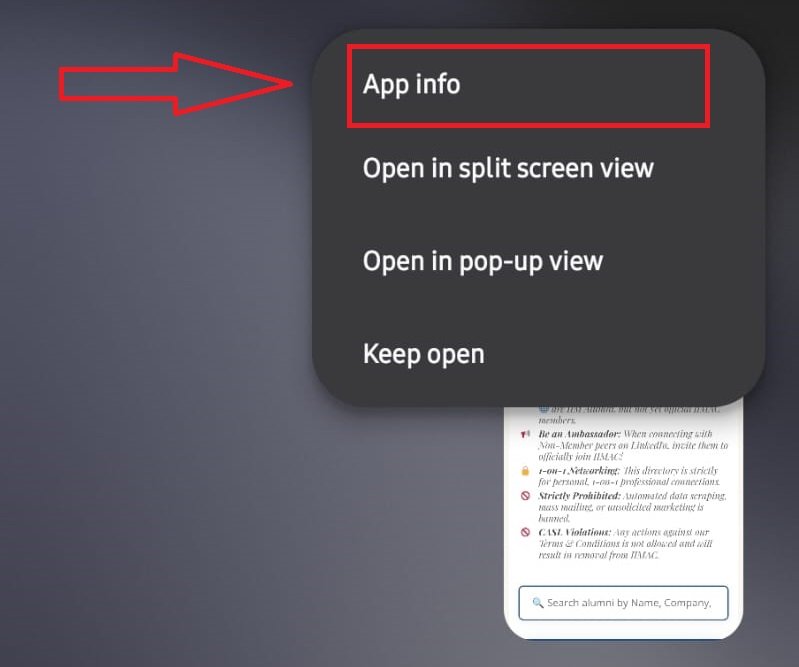
Navigate to your phone's home screen or app drawer where the IIMAC app is installed. Press and hold your finger on the IIMAC app icon until a small menu pops up. Tap on App info (or the small "i" icon, depending on your device).
Wipe the Memory to Force a Refresh
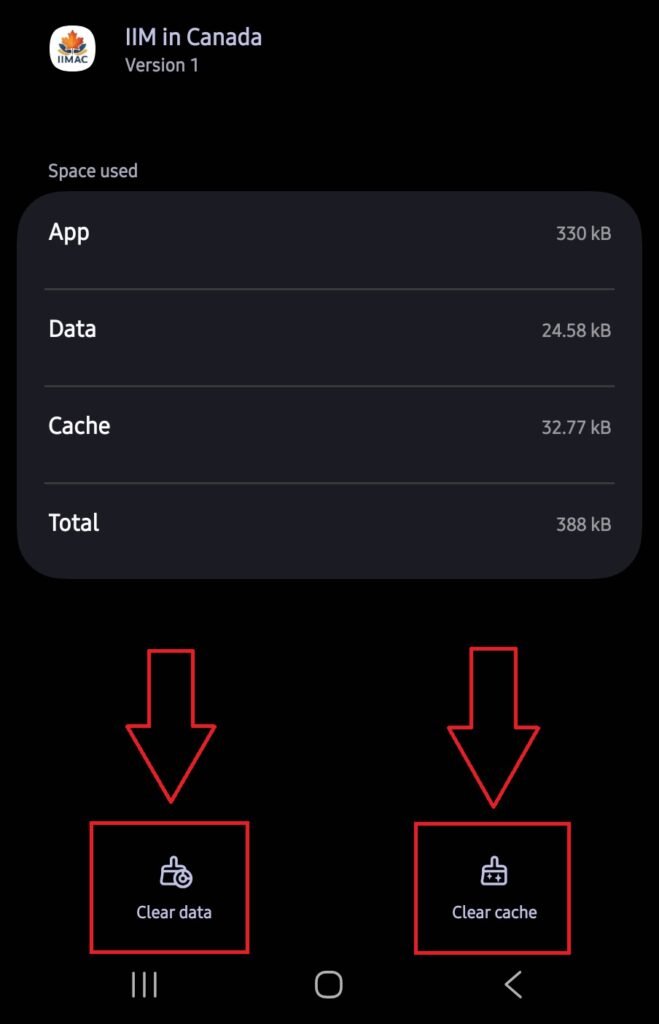
Once you are inside the App Info screen, tap on Storage (or "Storage & cache"). At the bottom of the screen, tap Clear cache, and then tap Clear data. ⚠️ Don't worry, this is completely safe! It will NOT delete your IIMAC account or cancel your membership. It simply clears the temporary memory and logs you out. You're Done! Re-open the IIMAC app, log in with your credentials, and your content will now be fully unlocked and live.

Swipe down to refresh the page and log in to see your live, unlocked content!
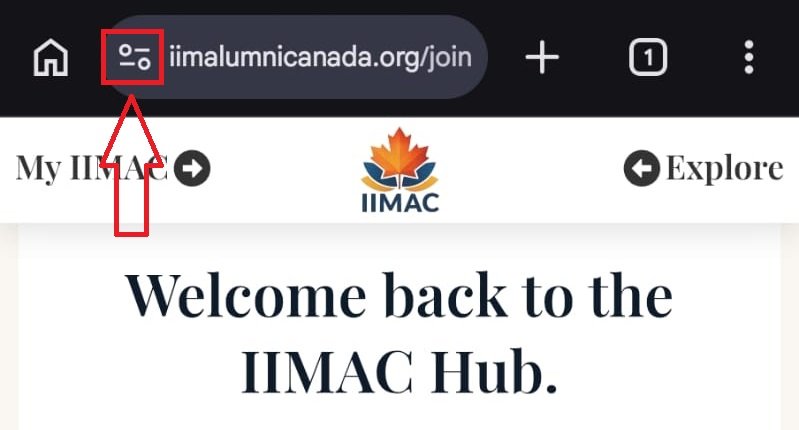
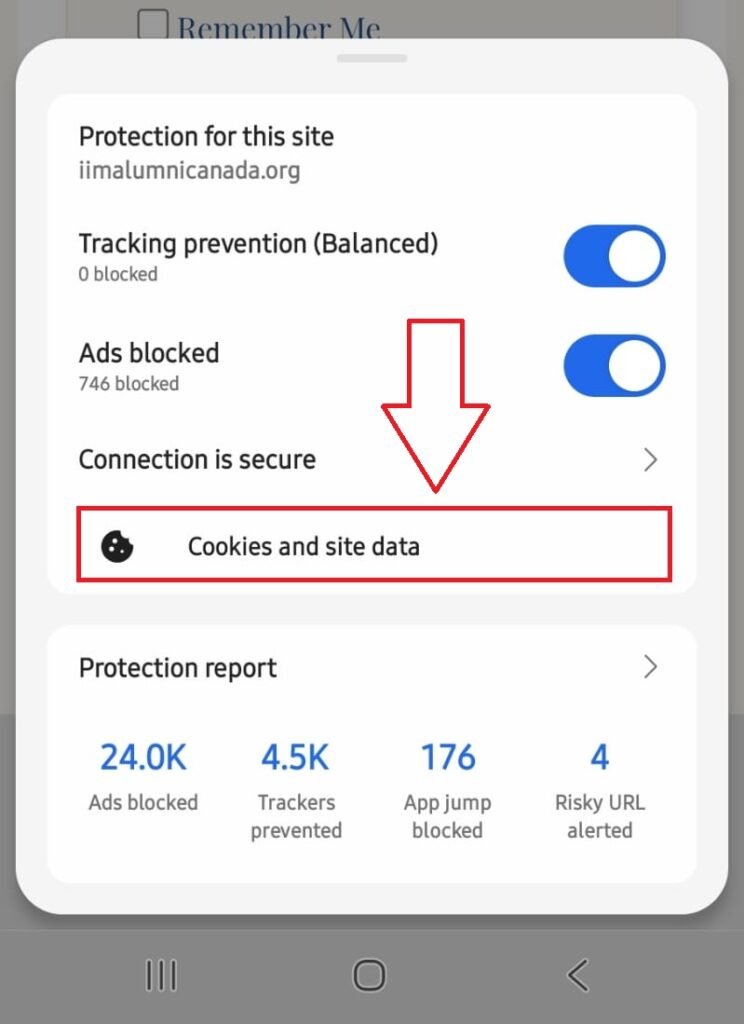
Step 1: Tap the Site Info icon (the small sliders) in the address bar, right next to the website URL.
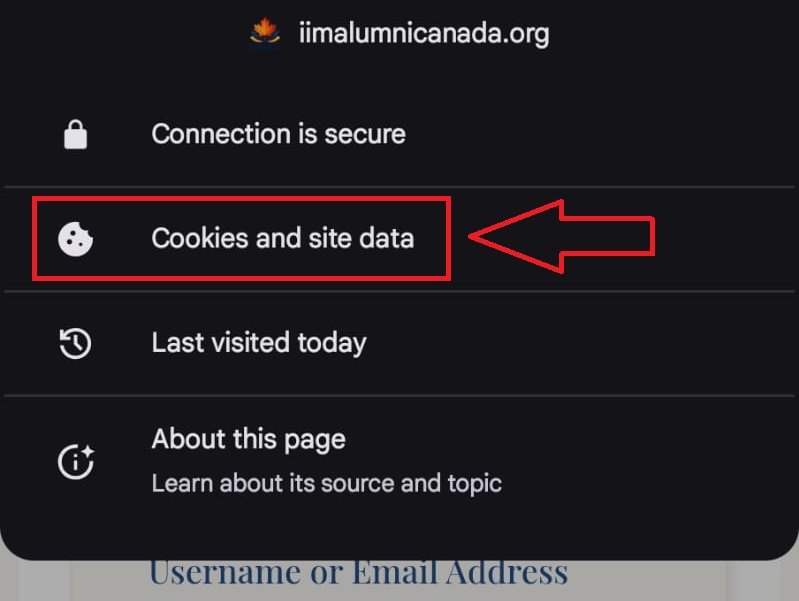
Step 2: In the menu that drops down, tap on Cookies and site data.
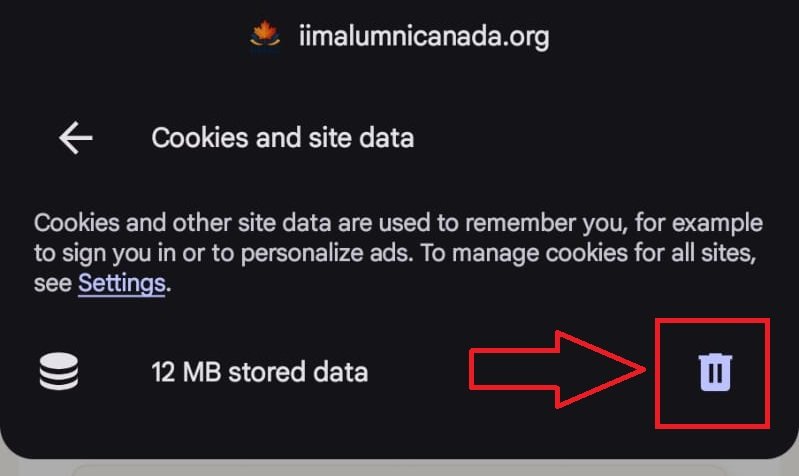
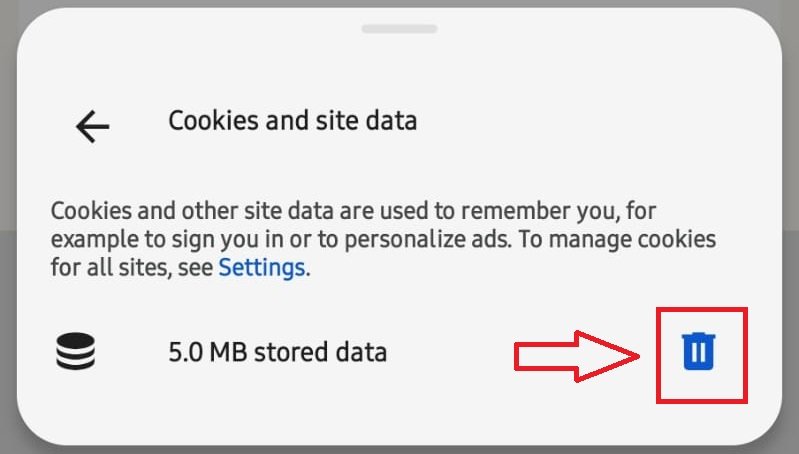
Step 3: Tap the Trash Can icon next to the stored data to delete the old cache.
Refresh the page and log in to see your live, unlocked content!
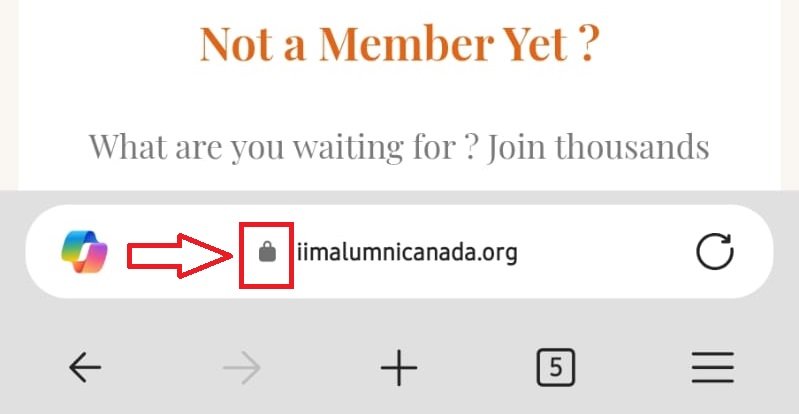
Step 1: Tap the Padlock icon in the address bar, right next to the website URL.
Step 2: In the security menu that pops up, tap on Cookies and site data.
Step 3: Tap the Trash Can icon next to the stored data to delete the old cache.